Quick Start
Setup steps for both editions. Pick the one you are installing.
The Free edition is the legacy, portable ZIP release. For the current main edition, see the Core (Microsoft Store) tab.
Download and extract
Download the ZIP from GitHub Releases and extract it to a folder of your choice. The LFM2.5-1.2B-JP model is included — no additional download is required to get started.
Launch OnecaratEditor
Open the extracted folder and run OnecaratEditor.exe. A language selection dialog will appear on first launch.
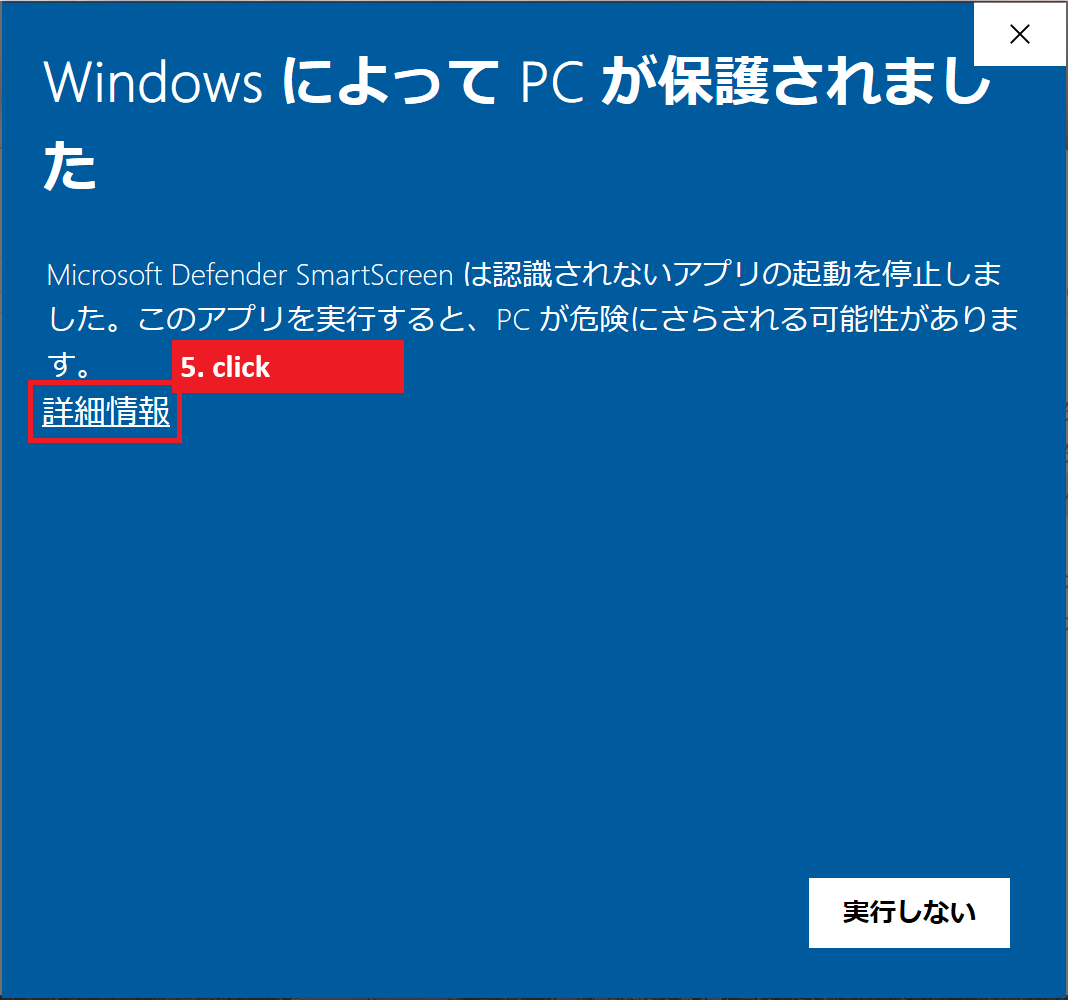
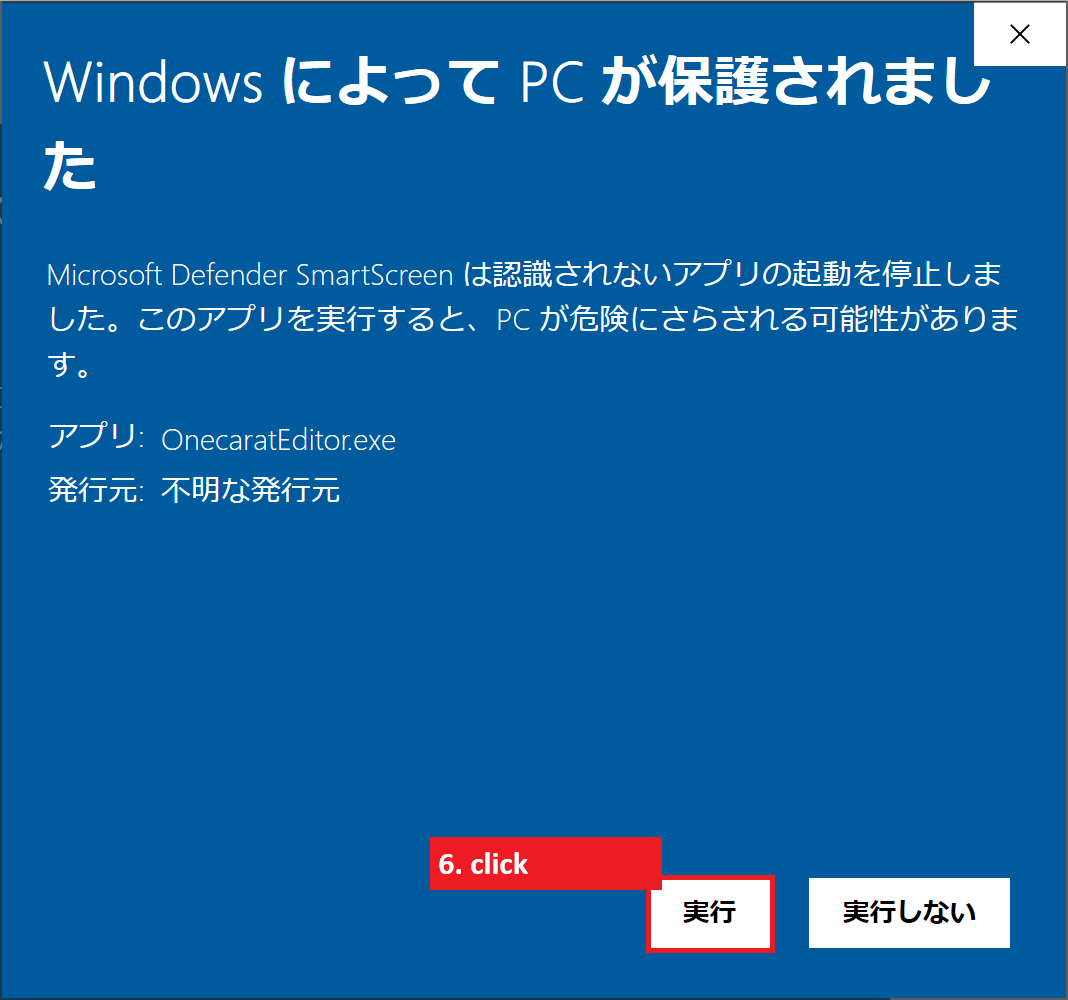
Windows SmartScreen may display a warning on first launch. This is expected for new software. Click "More info" then "Run anyway" to proceed.
Configure the LLM
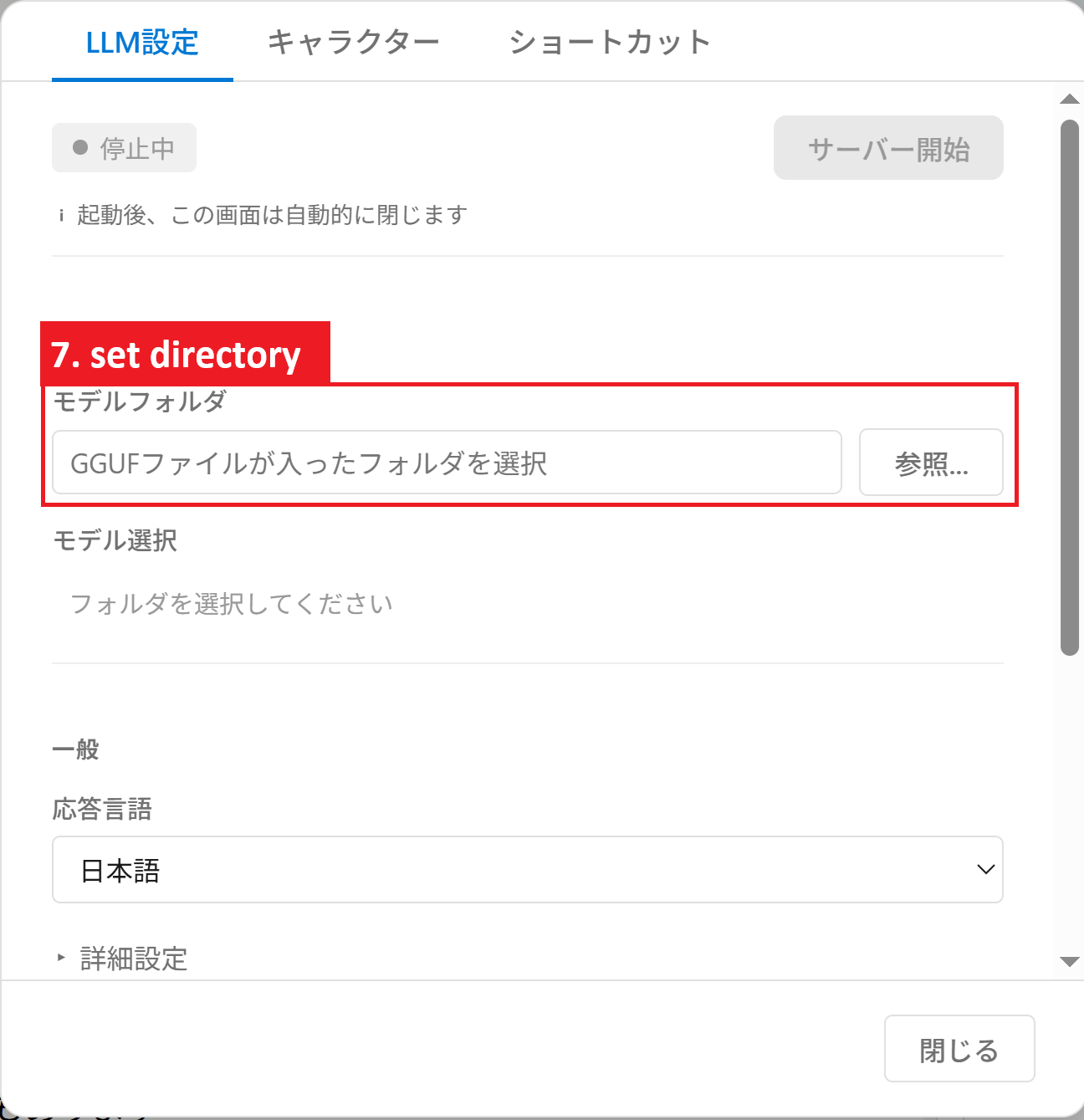
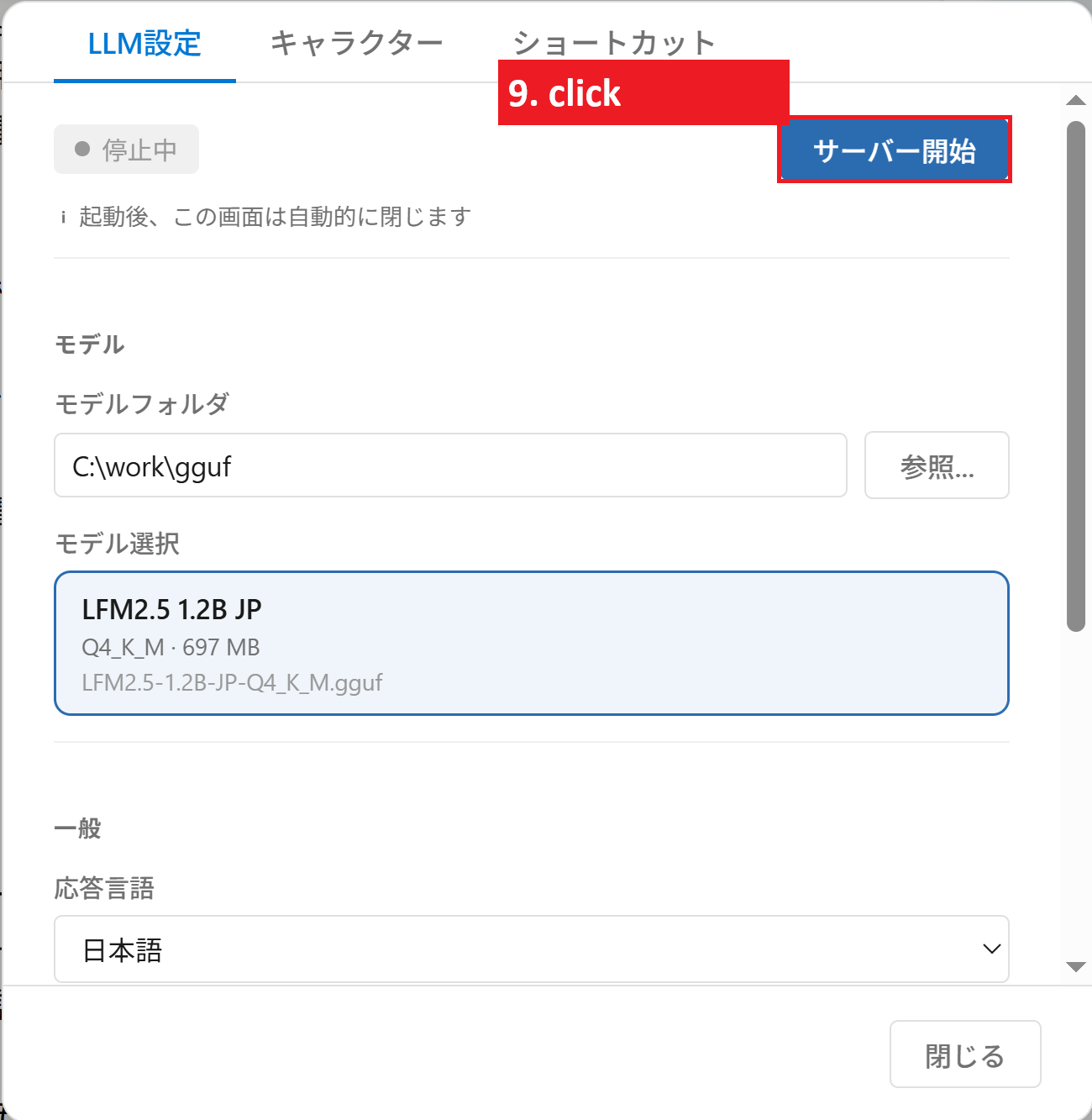
- Open the menu Settings → LLM Settings…
- The bundled LFM2.5-1.2B-JP model is pre-configured. To use a different model, set the model folder.
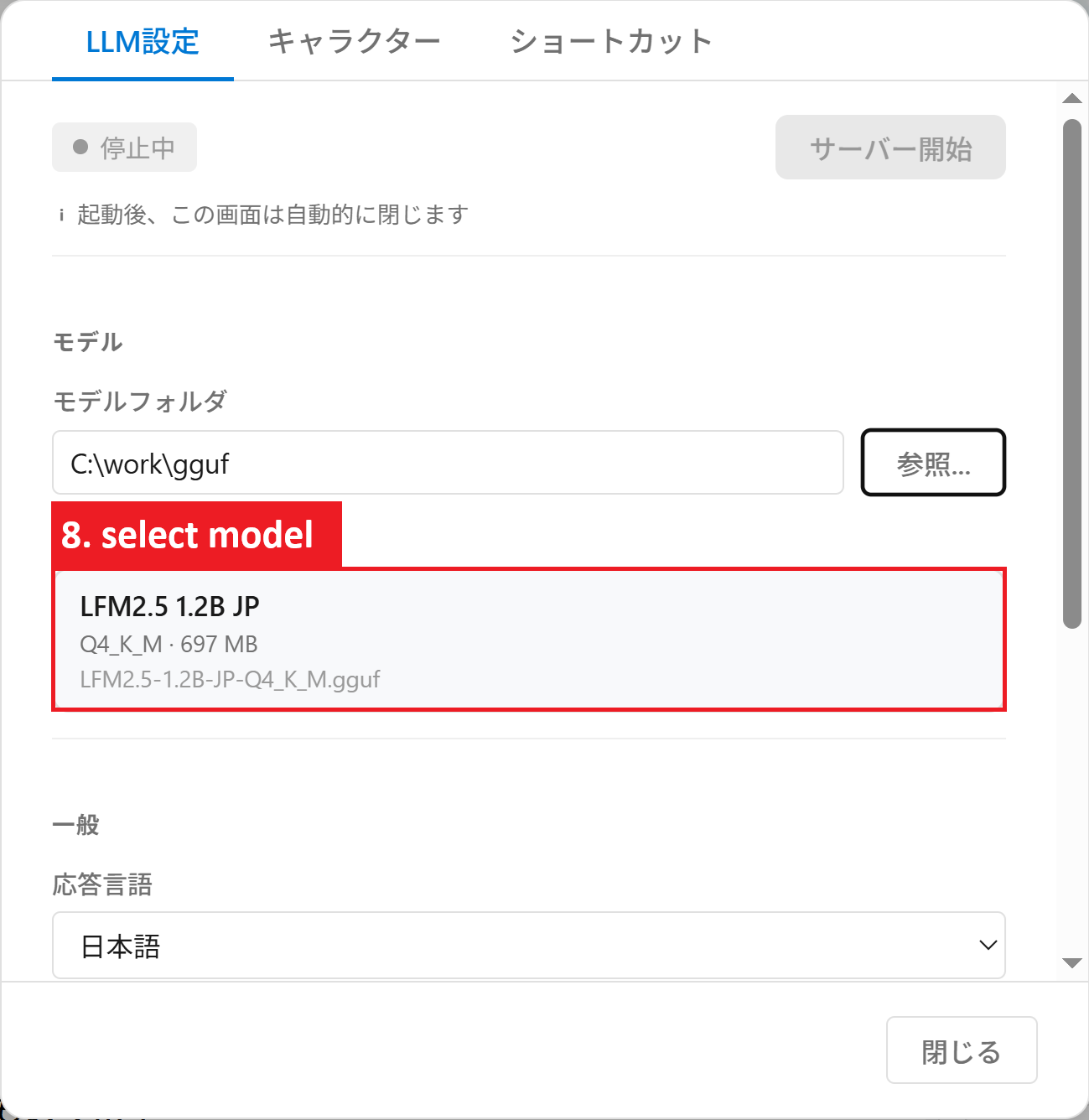
- Select the model you want to use from the list.
- Click the "Start Server" button.
The setup popup will close automatically once the server starts successfully.
Start writing
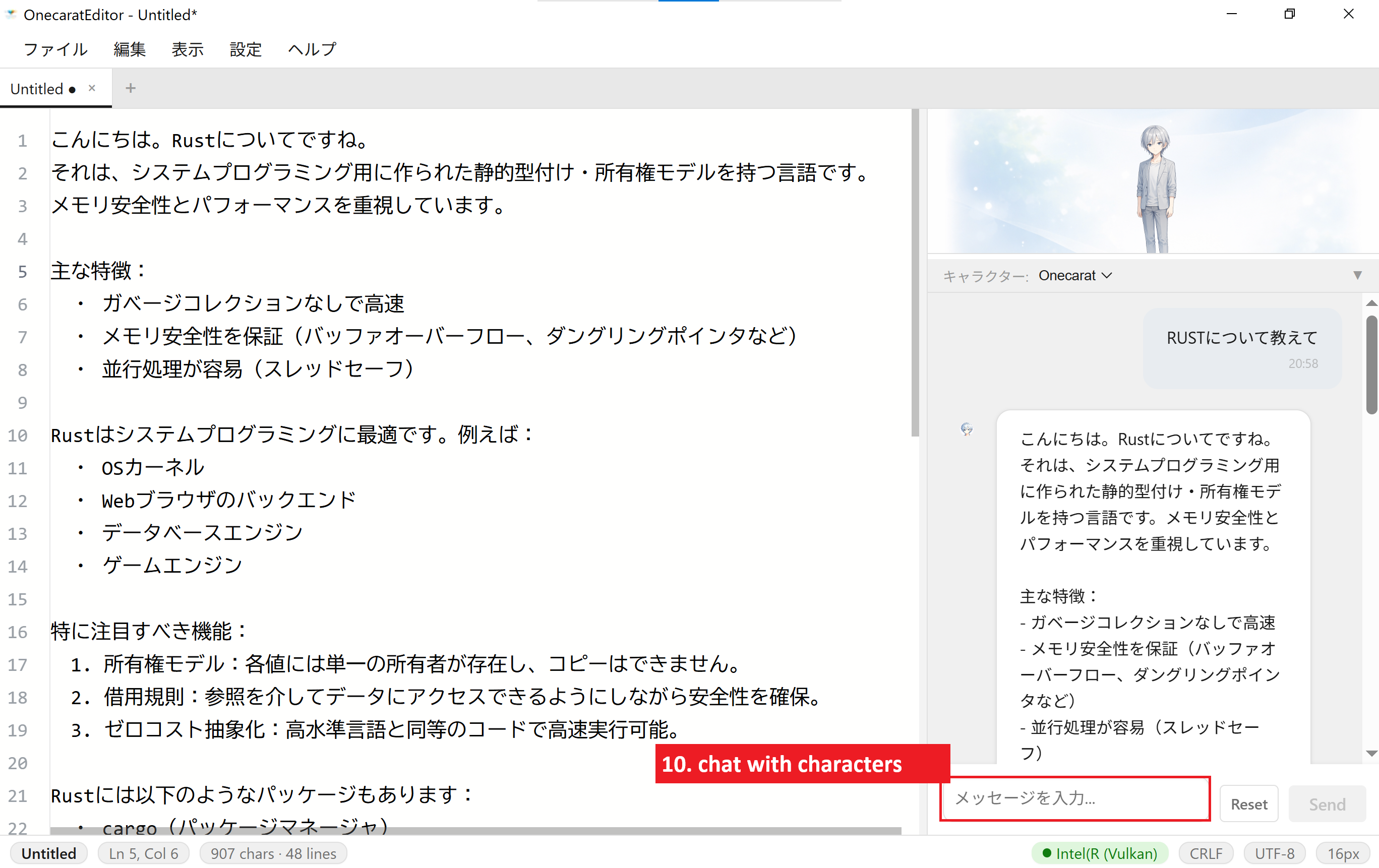
- Chat with the AI character to brainstorm or draft ideas.
- Select text, right-click, and choose AI actions such as summarize, rewrite, or expand.
Optional: other models and voice input
To use a different model, download a GGUF file from Hugging Face and place it in a folder of your choice (e.g. C:\work\gguf). Some models require a free Hugging Face account.
For speech-to-text in the Free edition, Whisper-related files must be prepared separately by the user.
OnecaratEditor Core is available on the Microsoft Store.
Install from the Microsoft Store
Get OnecaratEditor Core from the Microsoft Store. Installation and updates are handled by Windows — no ZIP files, no SmartScreen warnings.
Model download
On first launch, the setup guides you through downloading an AI model from Hugging Face — three models to choose from, with the default picked from your UI language and available RAM. This download is the app's own external connection, and it is recorded in network.log. Purchases and license checks through the Microsoft Store are communications by Windows, so they are not recorded there.
Start writing — AI runs on your PC
After setup, everything — chat, folder RAG, voice input, AI text processing — runs on your PC. The app's own external connections can be checked anytime: Help menu → "Open network log".